Foundations of
Data Science

Spring 2026 | Data 2 (399)
Jeffrey M. Girard | Lecture 02a

Roadmap

  1. Install R and RStudio on your laptop computer

  2. Learn to use the R Console as a scientific calculator

R and RStudio

Programming is a Superpower

  • Programming is how we talk to and control our amazing computers

  • It gives us power and flexibility

  • Everything we do in this course will be accomplished via programming

  • Programming will leave a record of what we did (i.e., code), so we can later reuse, adapt, and share it
Common Data Science Languages

General Purpose

  • R (interactive, welcoming)
    • Strengths: statistics, data wrangling, data visualization
    • Weaknesses: relatively slow, not security-focused
  • Python (popular, versatile)
    • Strengths: automation, machine learning, data wrangling
    • Weaknesses: relatively slow
  • Java / C++ / Scala / Julia (faster but older and harder or newer and smaller)

Special Purpose

  • JavaScript (web), SQL (databases), Swift (mobile), MATLAB (neuroscience), etc.

The R Ecosystem

  1. Think of your computer as the engine of a car
    • It provides raw power for computation
  1. The R language is like the controls for the car
    • It lets you apply and direct that power
  1. RStudio is like a fancy dashboard for the car
    • It adds extra information and convenience
  1. An R package is like an add-on for the car
    • It adds new features and capabilities

Installing R

Windows

  1. Open a web browser
  2. Visit cloud.r-project.org
  3. Click “Download R for Windows”
  4. Click the “base” subdirectory link
  5. Click “Download R-4.X.X” (e.g., 4.5.2)
  6. Run the downloaded .exe file
  7. Select all the default options
  8. Complete the installation wizard

Mac OS

  1. Open a web browser
  2. Visit cloud.r-project.org
  3. Click “Download R for macOS”
  4. Click “R-4.X.X.pkg” (e.g., 4.5.2)
  5. Run the downloaded .pkg file
  6. Select all the default options
  7. Complete the installation wizard

Installing RStudio

Windows

  1. Open a web browser
  2. Visit posit.co/download/rstudio-desktop
  3. Scroll down until you find “2: Install RStudio”
  4. Click “Download RStudio Desktop for Windows”
  5. Run the downloaded .exe file
  6. Select all the default options
  7. Complete the installation wizard

Mac OS

  1. Open a web browser
  2. Visit posit.co/download/rstudio-desktop
  3. Scroll down until you find “2: Install RStudio”
  4. Click “Download RStudio Desktop for macOS 14/15/26”
  5. Run the downloaded .dmg file
  6. Select all the default options
  7. Drag the RStudio icon to your Applications folder (if you want)

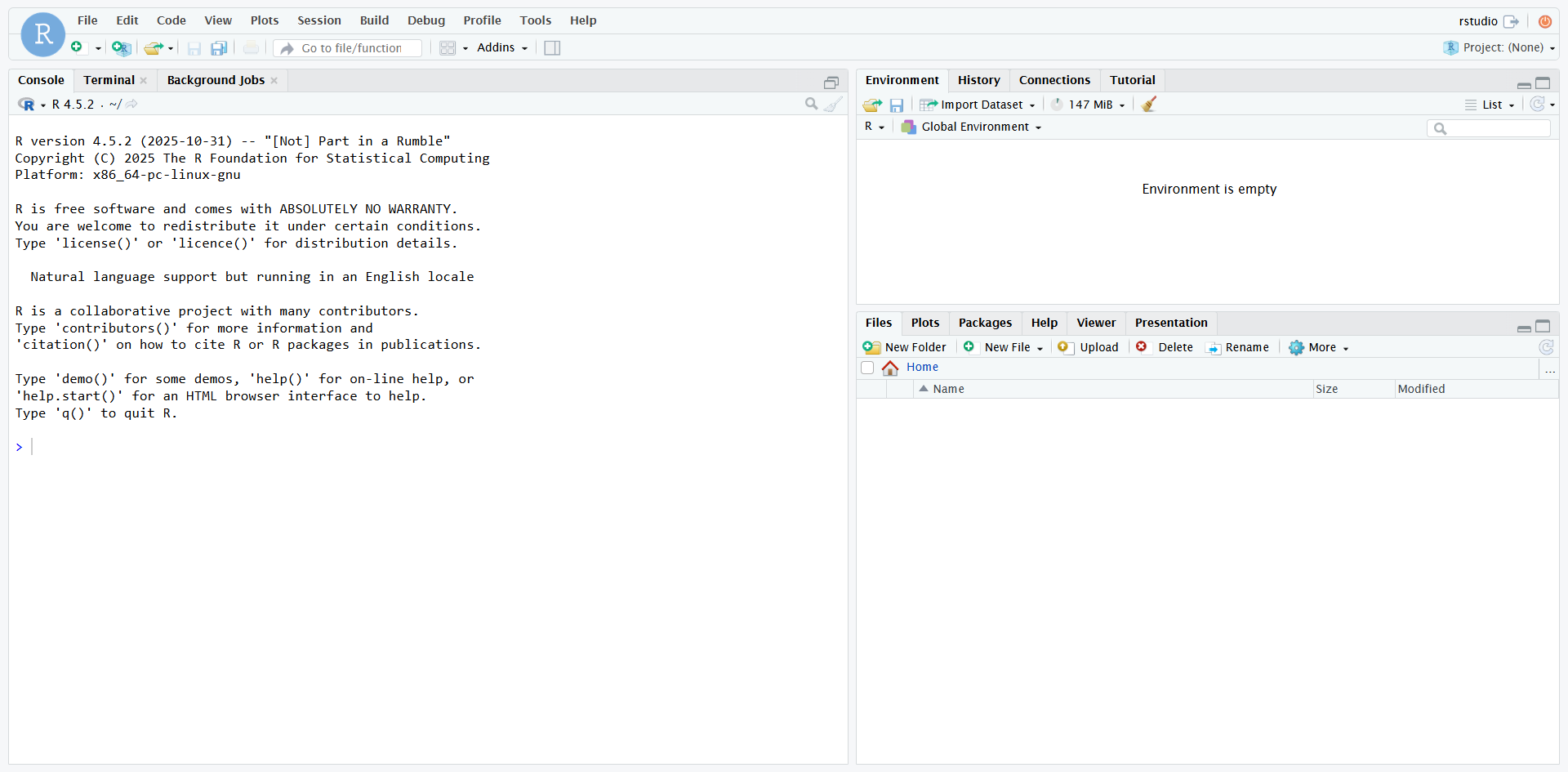
RStudio Window

Console

R will Grant your Wishes

  • R is like a well-meaning but overly literal genie

    • It has the power to grant almost any wish
    • But we must phrase our wishes carefully!
    • We will always get what we ask for…
    • …but not always what we wanted.
  • Mastering the R language means learning…

    • How to properly phrase commands
    • How to decipher error messages
    • How to view code from R’s perspective
    • How to detect and correct small mistakes

Communicating with R

  • The Console is like a chat window with R
    • You send a command to R and get a response
    • Neither side of the conversation is saved
  • An R Script is like an email thread with R
    • You send many commands to R all at once
    • Only your side of the conversation is saved
  • A Quarto Document is like a scrapbook with R
    • You can combine code and formatted text
    • Both sides of the conversation are saved

Simple Operations

# Addition
10 + 3
[1] 13
# Subtraction
10 - 3
[1] 7
# Multiplication
10 * 3
[1] 30
# Division
10 / 3
[1] 3.333333

Errors to Avoid

# Only use * for multiplication
10 x 3
Error in parse(text = input): <text>:2:4: unexpected symbol
1: # Only use * for multiplication
2: 10 x
      ^
# Only use / for division
10 \ 3
Error in parse(text = input): <text>:2:4: unexpected '\\'
1: # Only use / for division
2: 10 \
      ^

Advanced Operations

# Exponentiation
10 ^ 2
[1] 100
# Default Order of Operations
10 + 3 * 2
[1] 16
# Override Order of Operations
(10 + 3) * 2
[1] 26
# Negative Numbers
10 + -30
[1] -20

Advanced Numbers

# Decimals
1.234
[1] 1.234
# Fractions
(1 / 3)
[1] 0.3333333
# Leading and Trailing Zeros
09.870
[1] 9.87
# Large Numbers
9876543
[1] 9876543

Errors to Avoid

# Don't include commas inside numbers
9,876,543
Error in parse(text = input): <text>:2:2: unexpected ','
1: # Don't include commas inside numbers
2: 9,
    ^
# Don't include spaces inside numbers
9 876 543
Error in parse(text = input): <text>:2:3: unexpected numeric constant
1: # Don't include spaces inside numbers
2: 9 876
     ^