Multilevel Modeling
Course Overview and Workflow Recap
Spring 2026 | CLAS | PSYC 894
Jeffrey M. Girard | Lecture 01b

Roadmap
Syllabus Review
Course Modules
Workflow Recap
Syllabus Review
Instructor Information
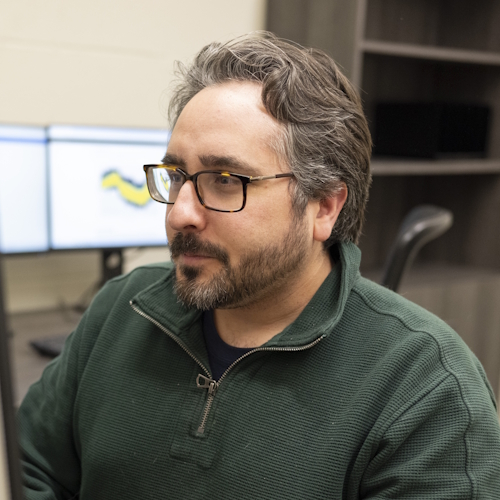
Jeffrey Girard, PhD
affcom.ku.edu/girard
jmgirard@ku.edu
Fraser Hall 454
Background
- Associate Professor, Department of Psychology
- Brain, Behavior, and Quantitative Science
- Clinical Psychological Science
- Kansas Data Science Consortium
Research Areas
- Affective Computing
- Mental and Social Health
- Applied Statistics and Machine Learning
- Data Science and Software Engineering
Office Hours: T 3-4pm, F 12-1pm (odd weeks) or 1-2pm (even weeks)
Learning Outcomes
Learn fundamental concepts underlying multilevel modeling
Learn practical skills for implementing such models in R
Instill a sense of mastery, curiosity, and fun
What you will learn here
When and why MLM is needed
Data prep and model building
Diagnostics and interpretation
Exposure to advanced topics
Exposure to alternatives
What you won’t learn here
Mastery of longitudinal models
Mastery of nested and crossed models
Mastery of Bayesian estimation
Mastery of Extensions (GLMM, GAMM)
Mastery of Alternatives (WLS, GEE)
Course Materials
Textbooks
Introduction to Multilevel Modeling [S&F]*
Shaw & Flake (2021, 1E, www.learn-mlms.com, free)Multilevel analysis: Techniques and applications [HMV]
Hox, Moerbeek, & van de Schoot (2017, 3E, www.taylorfrancis.com, paid)R for Data Science: Import, tidy, transform, visualize, and model data [WCG]
Wickham, Çetinkaya-Rundel, & Grolemund (2023, 2E, r4ds.hadley.mz, free)
R Packages
Grading Policies
Graded Components
66% Lab Reports (6% each \(\times\) 11) - Practice skills and concepts from lecture
22% Reflections (2% each \(\times\) 11) - Summarize and consolidate learning from reading
12% Final Project (12% each \(\times\) 1) - Apply skills to real-world data
Grading Scale
| Letter | A | A− | B+ | B | B− | C+ | C | C− | D+ | D | D− |
|---|---|---|---|---|---|---|---|---|---|---|---|
| G. Points | 4.0 | 3.7 | 3.3 | 3.0 | 2.7 | 2.3 | 2.0 | 1.7 | 1.3 | 1.0 | 0.7 |
| Threshold | 93% | 90% | 87% | 83% | 80% | 77% | 73% | 70% | 67% | 63% | 60% |
I don’t round or curve grades, but will give points back if a question was poorly designed.
Course Policies
Attendance
In-person attendance is strongly encouraged but not required
Video recordings will be attempted but cannot be guaranteed
Late Submissions
Detailed on each rubric, partial credit is possible for late submissions
However, no late submissions will be accepted after Stop Day (May 9)
Academic Misconduct
Acceptable: peers, tutors, technology used to explain or troubleshoot
Unacceptable: peers, tutors, technology used to complete assignments
You must use the skills and tools taught in class to solve the lab reports
Course Materials
Canvas
- Has assignments, grades, videos, and textbook PDFs
- https://canvas.ku.edu/courses/182539
Website
- Has topics, ebook links, datasets, and slideshows
- https://jmgirard.github.io/psyc894
- Note this may be renamed
psyc892next year
Course Modules
Unit A Overview
- Week 01: Course Overview and Recap of R
- No deadlines
- Week 02: Recap of Linear Modeling
- Lab Report only
- Week 03: Clustering Issues and Approaches
- Reflection and Lab Report
- Week 04: Data Prep and Estimation
- Reflection and Lab Report
Unit B Overview
- Week 05: Random/Varying Intercepts
- Reflection and Lab Report
- Week 06: Random/Varying Slopes
- Reflection and Lab Report
- Week 07: Cross-level Interactions
- Reflection and Lab Report
- Week 08: Translation Activity
- Reflection only
Unit C Overview
- Week 09: Spring Break
- No deadlines
- Week 10: Model Comparison
- Reflection and Lab Report
- Week 11: Longitudinal Analyses
- Reflection and Lab Report
- Week 12: Diagnostics and Reporting
- Reflection and Lab Report
Unit D Overview
- Week 13: Troubleshooting and Bayes
- Reflection and Lab Report
- Week 14: Advanced Previews
- Reflection and Lab Report
- Week 15: Project Work
- No deadlines
- Week 16: Project Work
- Project Report
Workflow Recap
The R Ecosystem
- Think of your computer as the engine of a car
- It provides raw power for computation
- The R language is like the controls for the car
- It lets you apply and direct that power
- RStudio is like a fancy dashboard for the car
- It adds extra information and convenience
- An R package is like an add-on for the car
- It adds new features and capabilities
Communicating with R
- The Console is like a chat window with R
- You send a command to R and get a response
- Neither side of the conversation is saved
- An R Script is like an email thread with R
- You send many commands to R all at once
- Only your side of the conversation is saved
- A Quarto Document is like a scrapbook with R
- You can combine code and formatted text
- Both sides of the conversation are saved
Projects
File Management
- Projects are special folders on your computer
- They contain all files related to a task
- They keep everything together and organized
- Projects make it easy to find and use your files
- No need to specify long, annoying file paths
- No need to worry about working directories
- Projects make it easy to switch between tasks
- They will remember exactly where you left off
- You can even open multiple projects at once
Create a new Project
- Open the “File” menu in RStudio
- Select the “New Project…” option
- Select the “New Directory” option
- Select the “New Project” option
- Name the directory “PSYC 894” or “MLM” (or whatever)
- Browse to where to create your Project folder
Create a new File
- Explore the Files tab in the Extras pane
- Create a New File (e.g., a script) as an example
- RStudio will automatically create it in your project folder
- Add some text to the example file (e.g., “# Hello World”)
- Save the file and note that it defaults to your project folder
- Close the script with the “x” icon
- Reopen the script from the Files tab
Close and Open Projects
- Open the “File” menu in RStudio
- Select the “Close Project” option
- Notice that your work is now gone
- Open the “File” menu in RStudio
- Select the “Open Project” option
- Browse to your project folder
- Open the .Rproj file (e.g., PSYC 399.Rproj)
- Notice that your work is now back!
Quarto
- Quarto is a scientific/technical publishing system
- Create dynamic content (e.g., code, output, and markdown) with R, Python, Julia, and Observable
- Articles, reports, slideshows, websites, blogs, and books in HTML, PDF, MS Word, and ePub formats
- Include equations, citations, crossrefs, figure panels, callouts, advanced layouts, etc.
Create an Quarto Document
- Open the “File” menu in RStudio
- Select the “New File” option
- Select the “Quarto Document…” option
- Keep the defaults (HTML) and hit “Create”
- Open the “File” menu
- Select the “Save” option
- Note that it defaults to the project folder
- Give it a name like “Lecture 02c” (or whatever)
- Note that the file extension is .qmd
Render the boilerplate content
- To see how it works, read the boilerplate content
- Now click the “Render” button to create the output file
- A preview of the output will appear in the Viewer tab
- In the File tab, we see a new .html file was created
- We can share this .html file with others
- It includes all the formatted text, code, and R results
Remove the boilerplate content
- The top part of the document is called the “Header”
- You can change the title but keep it in quotes
- Highlight and delete everything below the header
- In the future, you can click “Create Empty Document”
- Add
embed-resources: trueto the Header for assignments!
Add an R Chunk
- Option 1: Click the green box with C and a plus sign icon (top-right)
- Option 2: Ctrl+Alt+I (Win) or Cmd+Option+I (Mac)
- Option 3: Type out ```{r} then new line and ``` yourself
Adding code to the chunk
- Anything you put inside the “fences” (i.e., ```) will be treated as R code
- The chunk operates like a mini console
- Try doing some calculations in the chunk and hit the green arrow
- The answer appears right below the chunk!
- If we save and render the document, it appears in the output too
- We can add options to the chunk but we will return to this later
Markdown
Markdown
- Markdown is a simple text-to-HTML conversion language used by Quarto, GitHub, Obsidian, etc.
- It will allow us to add formatted text, images, links, lists, etc. to our Quarto documents
- Quarto will treat all text that is not in a code chunk as markdown
Formatting
| Markdown | Output |
|---|---|
| italics, bold, bold italics | |
| superscript2 / subscript2 | |
verbatim code |
Headings
| Markdown | Output |
|---|---|
Heading 1 |
|
Heading 2 |
|
Heading 3 |
|
Heading 4 |
R Refresher
- Mathematical Operations:
+ - * / ^ ( ) - Assignment and Naming:
<- - Storing Text in Strings:
"text data" - Using Built-in Functions:
sqrt(64) - Creating and Using Vectors:
c(1, 2, 3) - Installing New Packages:
install.packages("lme4") - Importing Data from Files:
df <- read.csv("file.csv")